

.avif)




Customers change their minds quickly. They spot a wrong unit number in the confirmation email, or decide ten minutes after paying that the medium should have been a large. If the order hasn't shipped yet, you can fix it in the Shopify admin by editing it or cancelling it. Once it's out the door, it's a return.
The short version
To cancel an order on Shopify, open it from Orders and click More actions > Cancel order. Choose how to refund the payment, pick a reason, decide whether to restock, then click Cancel order. To change the items, open the order and click Edit. To change the shipping address, click the menu in the Customer section and choose Edit shipping address. All three work best before anything has shipped.
How to cancel an order on Shopify
- From your Shopify admin, go to Orders and click the order.
- Click More actions > Cancel order.
- Under Refund payment, choose Original payment method, Store credit or Later. Pick Later if you want to refund part of the order, split the refund, or look into the order before any money moves.
- Choose a Reason for cancellation. You can add a Staff note as well, which only your team sees.
- Leave Restock inventory ticked if the items should go back into stock.
- Leave Send a notification to the customer ticked so they get an email.
- Click Cancel order.
If the payment was only authorised and never captured, there's nothing to refund. Shopify voids the authorisation and the customer is never charged. Otherwise the order moves to Refunded, or Partially refunded if you chose Later and refund part of it afterwards. Our guide on how to refund an order on Shopify covers those refund options in more detail.
You can also cancel up to 250 orders at once by ticking them in the order list and choosing Cancel orders. Be careful with this one. Shopify warns that the refund prompt might not appear for a bulk cancel, and when it doesn't, every order is refunded straight away, including orders you'd already refunded. If any of them has been refunded before, cancel them one at a time.
When you can't cancel a Shopify order
- Partially fulfilled orders can't be cancelled. Cancel the fulfilment first, or handle the shipped items as a return.
- If an order is fulfilled but unpaid, cancelling it means you can't collect the payment. Get the items back through a return instead.
- Orders with a third-party fulfilment service may need cancelling in that service's system first. If you've bought a shipping label, void it so you aren't charged for it.
- Orders that are already cancelled can't be cancelled again, and orders created by some apps have their own restrictions.
- Card processing fees don't come back when you refund, so a cancelled order still costs you a little.
Can customers cancel a Shopify order themselves?
Not directly. If you turn on Shopify's self-serve returns and cancellations, customers can request a cancellation of unshipped items from their order status page. It's only a request, though. You get a notification, review it in the admin, and approve or decline it. If you approve, you still remove the items and refund them through the normal flow. Your return and cancellation rules decide which orders qualify and for how long.
That's fine if someone is watching the admin all day. The catch is timing. If your warehouse picks orders within the hour, a request that waits a couple of hours for approval is usually too late.
How to edit an order on Shopify
Editing changes what's on an order without cancelling it and starting again.
- Go to Orders, click the order, then click Edit.
- To add a product, click Product, search for it, select it and click Done. For something that isn't in your catalogue, click Custom item and enter a name, price and quantity.
- To change a quantity, type the new number in the Quantity column. If the customer wants more of something already on the order, increase its quantity rather than adding it again.
- To remove an item, hover over it and click the ×. Removed items go back into stock unless you untick Restock units.
- Add a Reason for edit if you want a record of why. The customer doesn't see it.
- Review the changes, choose whether to notify the customer, then update the order.
There's no "change size" button. To swap a medium for a large, remove the medium and add the large.
Collecting a balance or refunding after an edit
Shopify recalculates the order total, but it doesn't move any money for you. If the total went up, the summary shows an amount to collect. Email the customer an invoice with a checkout link, or take the payment another way. If the total went down, the summary shows a refund owed, and you issue that refund yourself after updating the order. Sending the edit notification doesn't refund anyone.
What you can't change with an order edit
- You can only edit unfulfilled items. Fulfilled items can't be removed and their quantities can't change.
- Orders paid with Shop Pay Installments can't be edited. Refund the order and create a new one instead.
- Local delivery orders can't be edited, and you can't switch an order from shipping to pickup.
- Orders created by an app can usually only be edited by that app.
- You can't add a product bundle to an existing order.
- Shipping rates aren't recalculated. If an edit makes the parcel heavier, add a custom shipping charge.
- Order-level discounts and discount codes can't be edited, and some discounts won't recalculate after an edit, so check the total before you save.
It's also worth checking that your fulfilment service or 3PL supports order edits. If it doesn't, it might still ship an item you removed.
How to change the shipping address on a Shopify order
- Go to Orders and click the order.
- In the Customer section, click the menu icon, then Edit shipping address.
- Update the address and fix any validation warnings Shopify shows.
- If the new address changes the tax, check the Summary. Select Send invoice to bill the customer for the extra tax, or refund the difference after saving if it went down.
- Click Save.
To change the customer's email or phone number on the order, choose Edit contact information from the same menu. Tick Update customer profile if the change should apply to their account as well as this order. You can't edit the billing address.
If a label has already been printed, changing the address in Shopify won't change the label. Void it and buy a new one, or contact the carrier if the parcel has already been collected.
Stop orders shipping before customers can fix them
Everything above has the same weak spot. It relies on the customer emailing you, and on someone in your team making the change before the warehouse picks the order. Fast fulfilment is great until a customer notices a typo in their postcode twenty minutes after checkout.
A common fix is to hold new orders for a short window. Shopify Flow can put each new order's fulfilment on hold for, say, 30 minutes and then release it automatically. Anything the customer asks to change in that window can still be changed.
Let customers edit or cancel their own Shopify orders
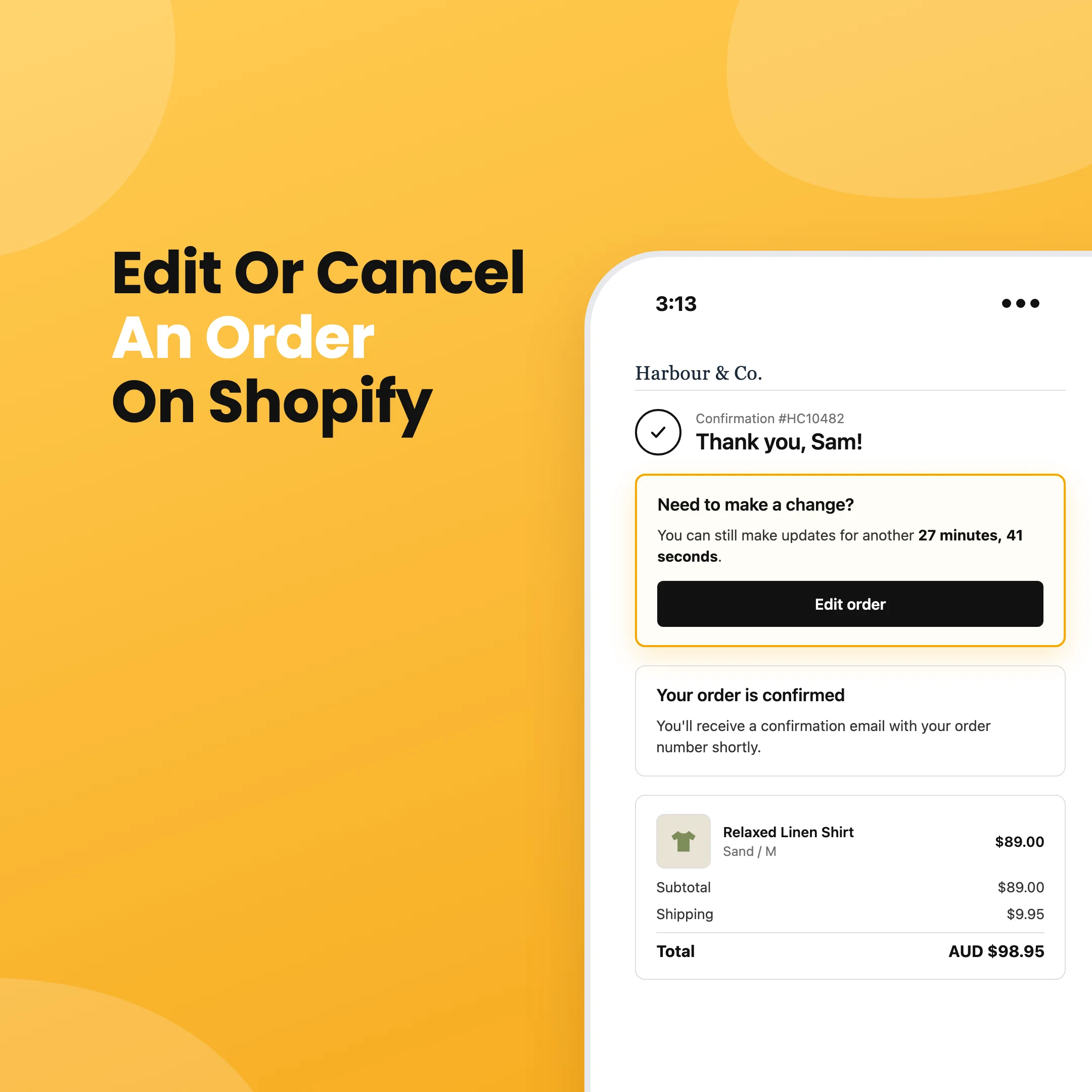
Refundid Order Editing takes those changes out of your inbox and gives them to the customer. Straight after checkout, a block on the Shopify thank-you page tells them they can still make changes and counts down the time they have left. They click Edit order, sign in, and make the change on their order status page. Depending on what you switch on, they can:
- change quantities, remove items or add products from your store, which covers swapping a size
- fix their shipping address within the same country
- update their contact email
- cancel the order
Item, address and email changes are staged and confirmed together, so the customer sees the new total before anything is saved. If they added items, they pay the balance through Shopify's secure payment page, and Shopify emails them a payment link too. If they removed items, Refundid can refund the difference automatically, or leave it for your team to handle. Cancellations can refund and restock automatically as well. Each of these is a setting you control.
You choose the edit window, which is 30 minutes by default. Pair it with the Shopify Flow hold above (we provide a ready-made workflow you can import) and orders stay on hold until the window closes, then go to your warehouse as normal. When the window closes or fulfilment starts, the edit options disappear. Every change is checked again when the customer submits it, so an order can't be changed after fulfilment has started, even if the customer left the page open.
Edited orders get an Edited by Refundid tag, cancelled ones get Cancelled by Refundid, and the change appears in the order timeline. Your team can see what happened without asking anyone. Order Editing is available for Shopify stores only. If you're weighing it up against dedicated apps, our roundup of the best Shopify order editing apps compares pricing and features side by side.
It runs alongside Refundid's returns portal, so the orders that do ship and come back are covered too. If a customer wants a different size after delivery, our guide on handling exchanges on Shopify walks through it, and how to do returns on Shopify covers the rest of the process. To see Order Editing on your own checkout, book a demo.